
Project Go Hub
Bulletins
This week's bulletin and every one before it, in one list.
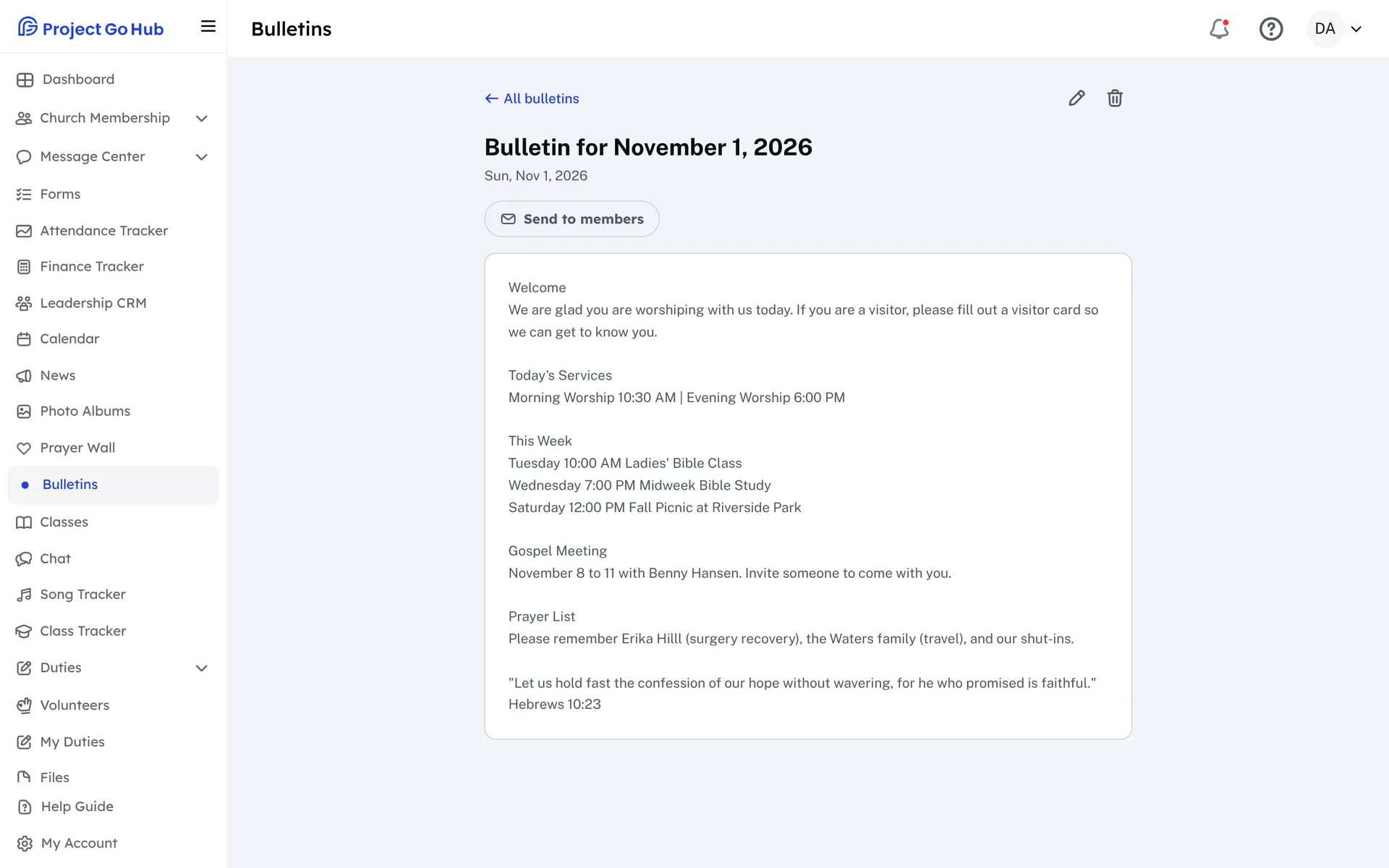
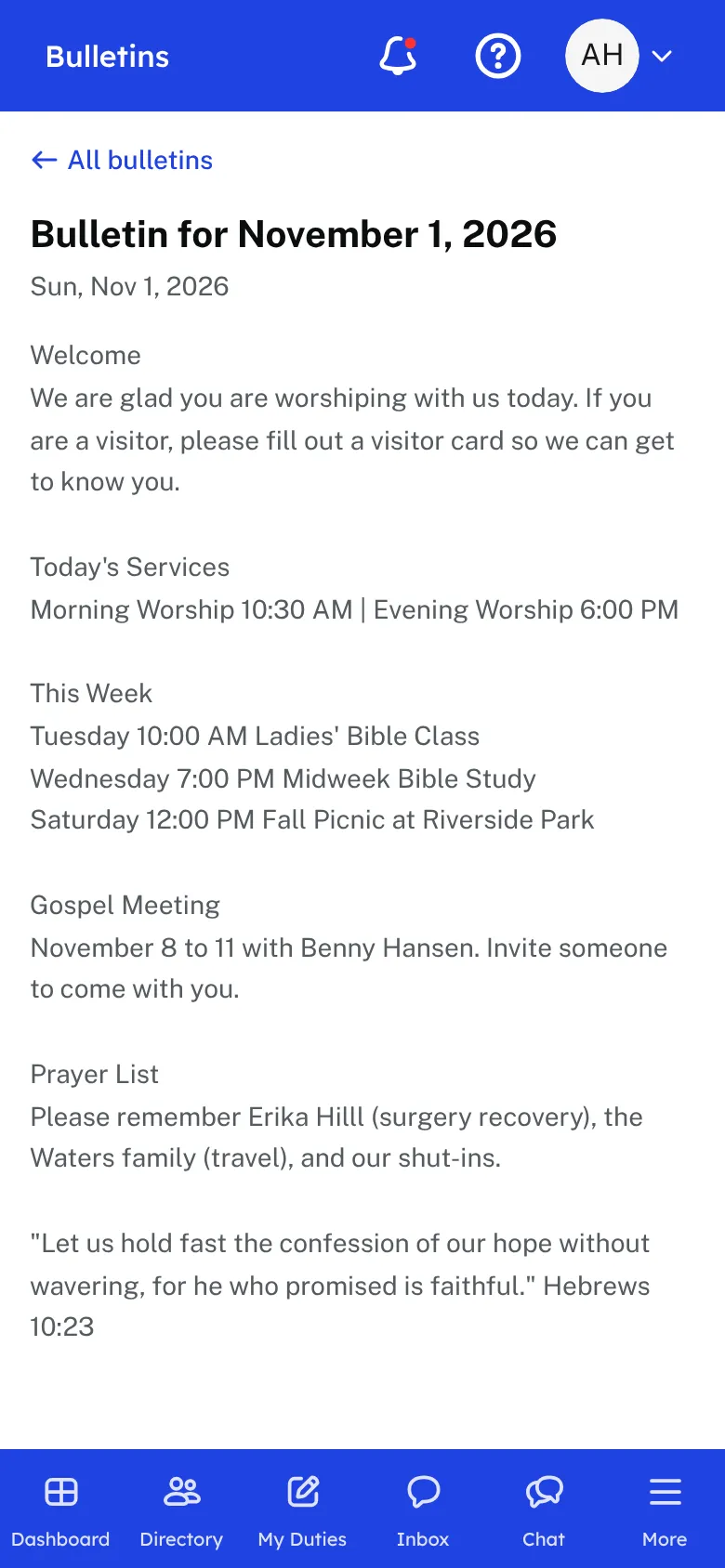
Give each bulletin a title and a date. Then add a PDF, type the text of the bulletin, or do both. A PDF can be up to 25 MB. The text box is a good place for announcements and the order of worship, and it is optional when you add a PDF.
A new bulletin can be saved as a draft that only leaders can see. When it is ready, tick Published and members can read it. You can change a bulletin later, replace its PDF, or delete it.
Members open the Bulletins page and find the bulletins listed newest first, grouped by month, with a search box to find an older one. They open the PDF in their browser or read the text right on the page, on a phone or a computer.
To tell people the bulletin is out, send it to members as an email or a text straight from the bulletin. The bulletin then shows when it was sent. The PDF counts toward your church's Files storage.
Who this helps
Members
They find this week's bulletin and past ones in one list, open the PDF or read the text, and search when they want an older one.
Leaders
Upload the PDF or type the text, keep it as a draft until it is final, and publish. One step sends it to members as an email or a text.
27 features, one platform.
Try the Project Go Hub free, or see everything it does. No credit card required.